

This is a planning checklist that will help you determine if an in-place upgrade is possible, and how to prepare the environment in advance for it.
1. Verify we are moving from a supported version of SCOM 2022 to SCOM 2025.
- ONLY SCOM 2022 can be upgraded to SCOM 2025.
- Although it is possible to upgrade from SCOM 2022 RTM directly to SCOM 2025, it is strongly recommended to be on SCOM 2022 Update Rollup 3 or higher before upgrading.
- Reference: https://learn.microsoft.com/en-us/system-center/scom/deploy-upgrade-overview?view=sc-om-2025
2. Verify the SQL server versions and service pack levels are supported for both SCOM 2022 and SCOM 2025
- DOCUMENT: SQL is xx.x.xxxx (SQL 202x SPx) X Edition
- Is this is supported for BOTH SCOM versions?
- SCOM 2022 supports SQL 2017, SQL 2019 CU8 or later, and SQL 2022 CU11 or later.
- SCOM 2025 supports SQL 2017, SQL 2019 CU8 or later, SQL 2022 CU11 or later, and SQL 2025 (SCOM only supports SQL 2025 if SCOM 2025 has UR1 applied)
- Therefore – your SQL servers MUST be either SQL 2017, SQL 2019 CU8 or later, or SQL 2022 CU11 or later for a supported in place upgrade.
- Reference: https://learn.microsoft.com/en-us/system-center/scom/plan-sqlserver-design?view=sc-om-2025#sql-server-requirements
3. Verify all OS versions for SCOM server roles will be supported for both SCOM 2022 and SCOM 2025
- DOCUMENT: All server roles are on Windows Server 20xx
- Is this is supported for both SCOM versions?
- SCOM 2022 supports Windows Server 2019 and Windows Server 2022 for SCOM server roles.
- SCOM 2025 supports Windows Server 2022 and Windows Server 2025 for SCOM server roles.
- Therefore, your SCOM Server roles MUST be on Windows Server 2022 for a supported in place upgrade.
- Reference: https://learn.microsoft.com/en-us/system-center/scom/system-requirements?view=sc-om-2025#server-operating-system
4. Verify all SERVER ROLES meet minimum hardware sizing for SCOM 2025
- Are all SCOM and SQL servers are sized at least to minimum specifications. Use the Sizing Helper spreadsheet for recommended sizing.
- Reference: https://learn.microsoft.com/en-us/system-center/scom/system-requirements?view=sc-om-2025#hardware-requirements
- https://aka.ms/scomsizer
5. Verify all AGENT managed Operating Systems are supported for SCOM 2025.
- SCOM 2025 agent supports Windows 10, Windows 11, Windows Server 2016,2019,2022,2025.
- SCOM 2025 agent requires PowerShell 3.0 or later to be installed on ALL agent managed machines.
- SCOM 2025 agent requires .NET 4.7.2 or later. .NET 4.7.2 was installed by default on Windows Server 2019. Older OS versions must be upgraded.
- You can use the SCOM.Management MP to easily check your agent’s .NET versions: https://kevinholman.com/2017/05/09/scom-management-mp-making-a-scom-admins-life-a-little-easier/
- https://learn.microsoft.com/en-us/system-center/scom/system-requirements?view=sc-om-2025#microsoft-monitoring-agent-operating-system
6. Verify all MANAGEMENT PACKS in use are supported for SCOM 2025.
- There is a known issue that will cause the upgrade to fail if you have updated Linux MP’s in SCOM 2022. Please see: Upgrade from SCOM 2022 to SCOM 2025 fails due to Microsoft.Unix.Library
- Check with 3rd party MP vendors and ensure their MP does not have any known support issues with SCOM 2025. Update these MP’s in advance if required.
- All previous Microsoft MPs with the exception of UNIX/Linux MPs should work with SCOM 2025, although they might not be explicitly documented as supported in SCOM 2025 due to their age.
7. SCOM Database: Verify the OperationsManager database has more than 50 percent free space
- Ensure the OpsDB has more than 50% free space
- Ensure the Transaction log is pre-sized to 50% of the DB size
- Ensure the DataWarehouse DB has sufficient free space so it will not have to grow during upgrade.
- This is a good time to verify SQL is otherwise healthy and performing well.
- Reference: https://learn.microsoft.com/en-us/system-center/scom/deploy-upgrade-pretasks?view=sc-om-2025#verify-the-operations-manager-database-has-more-than-50-percent-free-space
- https://kevinholman.com/2017/08/03/what-sql-maintenance-should-i-perform-on-my-scom-2016-databases/
8. Optimize Registry settings for management servers
- There are registry updates that will reduce the chance of an upgrade failure (especially the DW deployment setting):
- Reference: https://kevinholman.com/2017/03/08/recommended-registry-tweaks-for-scom-2016-management-servers/
9. Export and review the SCOM management server event logs on all management server roles
- Look for critical and warning events that indicate major issues that should be resolved before upgrading.
- Save these for comparison after the upgrade to verify any new issues are actually new
10. Verify SCOM is healthy
- Review the “Operations Manager > Management Group Health” dashboard in addition to the event logs and ensure SCOM is healthy
11. T-SQL: Clean up the database ETL table in the OperationsManager database
- Run this SQL script. This grooms out unnecessary data and speeds up the upgrade, removing a possible timeout scenario.
- Reference: https://learn.microsoft.com/en-us/system-center/scom/deploy-upgrade-pretasks?view=sc-om-2025#clean-up-the-database-etl-table
12. Check ALL Management Packs for duplicate Aliases.
- In previous versions of SCOM, duplicate aliases (with different case) was allowed. This is no longer allowed. However, we do not check for this condition as part of the upgrade.
- Please run the PowerShell or SQL scripts at the bottom of this page in the KNOWN ISSUES section of this article to check for this condition and resolve this BEFORE continuing.
13. SCOM Console: Remove agents from Pending Management
- As a best practice, you should not leave agents in pending management. This will consume resources because there are workflows targeting these class instances.
- If you have your agent approval setting to “Review” you should set it to “Reject” so any new agents do not attempt to re-create pending actions.
- Reference: https://learn.microsoft.com/en-us/system-center/scom/deploy-upgrade-pretasks?view=sc-om-2025#remove-agents-from-pending-management
- It is a good idea to query the AgentPendingActions table at this point, to ensure you don’t have any stale pending actions that do not show up in the console:
- Reference: https://kevinholman.com/2008/09/29/agent-pending-actions-can-get-out-of-synch-between-the-console-and-the-database/
14. Backup unsealed management packs
- Get a fresh backup of all your unsealed MP’s which contain all your customizations, for disaster recovery
- Example: Get-SCOMManagementPack | where {$_.Sealed -eq $false}|Export-SCOMManagementPack -Path c:\mpbackup
15. REMOVE the OMS/Advisor management packs
- There is a bug in the Advisor MP (Microsoft.SystemCenter.Advisor.mpb) which can break the SCOM upgrade process.
- Manually remove ALL the Advisor/OMS MP’s.
- Reference: How to remove OMS and Advisor management packs – Kevin Holman’s Blog
16. SCOM Console: Disable Notification subscriptions
- Reference: https://learn.microsoft.com/en-us/system-center/scom/deploy-upgrade-pretasks?view=sc-om-2025#disable-notification-subscriptions
- http://www.scom2k7.com/subscription-tool/
17. Disable product connectors or any external connections to the SDK.
- We do not want any connections to the SDK during upgrade. This includes Product Connector Services, Microsoft Orchestrator, any scheduled tasks you might be running with custom scripts.
- Reference: https://learn.microsoft.com/en-us/system-center/scom/deploy-upgrade-pretasks?view=sc-om-2025#disable-connectors
18. Optional but recommended: Restart the SQL server service on the OpsDB server and DW server
- This will kill any stuck or old blocking processes, and free up any buffer cache
- Wait at least 5 minutes after restarting to ensure the DB’s are online and functioning.
- Ensure there is no active blocking in the OpsDB before continuing.
- Consider a reboot of the entire server.
19. Optional but recommended: Uninstall the SCOM Console and Web Console on the FIRST management server you plan to upgrade and REBOOT.
- Removing these roles reduce the risk of an upgrade failure.
- These roles are easy to reinstall once the management group upgrade is completed.
20. Stop the Operations Manager services on ALL Management servers
- Stop the following services on all management servers in the management group, to ensure NO changes are being made to SQL during the backup, so we can get a good backup right before the upgrade:
- Microsoft Monitoring Agent
- System Center Data Access
- System Center Configuration
21. Backup the SCOM databases
- Backup the OperationsManager, OperationsManagerDW, and ReportServer databases in case we need to restore due to a failed upgrade.
- Reference: https://learn.microsoft.com/en-us/system-center/scom/deploy-upgrade-pretasks?view=sc-om-2025#back-up-the-operations-manager-databases
22. Backup the Management Servers
- Take a VM snapshot or a full bare-metal backup that is restorable, with the SCOM services stopped, so there should be no transient data. This will be for use in the case of disaster recovery only.
23. Remove any old SDK reference software from the management server
- Some programs install DLL’s that might block upgrade, consider removing them if installed on your management servers:
- SCOM 2007 R2 Authoring Console
- Silect MP Author/MP Studio
24. Optional but recommended: REBOOT ALL Management servers.
- Rebooting these servers ensures that any OS related issues are observed or cleared before attempting an upgrade.
- Rebooting these servers helps remove any question that something was wrong with them prior to the upgrade.
- If a Management server cannot successfully reboot and start up without errors before an upgrade, it certainly cannot after an upgrade.
25. Upgrade the first management server
26. Upgrade additional management servers
- It is CRITICAL not to upgrade multiple management servers at the same time. You should wait for one to complete FULLY and inspect the logs to ensure it is working, before continuing with the next.
27. Upgrade ACS (if applicable)
- Reference: https://learn.microsoft.com/en-us/system-center/scom/deploy-upgrade-acs-collector?view=sc-om-2025
28. Upgrade all gateways (if applicable)
- Reference: https://learn.microsoft.com/en-us/system-center/scom/deploy-upgrade-gateway-server?view=sc-om-2025
29. Upgrade Stand Alone Web Console servers (if applicable)
- If you have web console servers that are NOT on management servers, upgrade those now. Or just uninstall them, and reinstall them later.
- Reference: https://learn.microsoft.com/en-us/system-center/scom/deploy-upgrade-web-console?view=sc-om-2016&viewFallbackFrom=sc-om-2025
30. Upgrade Reporting Server
- Reference: https://learn.microsoft.com/en-us/system-center/scom/deploy-upgrade-reporting-server?view=sc-om-2025
31. Upgrade Stand-Alone Consoles
- Reference: https://learn.microsoft.com/en-us/system-center/scom/deploy-upgrade-ops-console?view=sc-om-2025
32. Post Upgrade tasks
- Review event logs and look for new errors or issues on all management servers
- Re-enable notification subscriptions
- Re-enable Product Connectors, Remote SDK connections, Custom tasks, Exchange Correlation Engine where applicable.
- Test all key features of SCOM, review Management Group Health Dashboard.
- Reference: https://learn.microsoft.com/en-us/system-center/scom/deploy-upgrade-post-tasks?view=sc-om-2025
33. Reject Pending Management updates for any agents
- We will update agents later, after applying the latest Update Rollup for SCOM 2025. Reject any pending agents for an upgrade.
34. Verify your SCOM license is reporting correctly as licensed
35. Apply the latest Cumulative Update Rollup for SCOM 2025
- You should generally wait a few hours after an upgrade to SCOM 2025, before applying the latest SCOM 2025 update rollup. There are warehouse scripts as part of the upgrade that can take several hours to complete, and it is a best practice to not interrupt these.
- Reference: https://learn.microsoft.com/en-us/system-center/scom/release-build-versions?view=sc-om-2025
36. Upgrade Agents
- Using whatever method you choose, consider upgrading your agents to SCOM 2025 with the latest UR at this point.
What to do when things go wrong?
When SCOM upgrades fail, there will be a log telling us why. Often times you will get an “Error 1603” which is simply a generic error and does not tell you anything. These log files are typically located in the user profile directory of the account attempting the installation. C:\Users\<username>\AppData\Local\SCOM\LOGS. Review ALL the logs, and if needed provide all these logs to a Microsoft engineer when opening a support case. Log files are not always easy to interpret – but the root cause is almost always in them.
Common issues causing failures:
- Lack of permissions for the user account performing the upgrade (requires Local admin, SCOM admin, and SQL SysAdmin)
- TLS 1.2 enforced on management servers or SQL but missing prerequisites
- A SCOM Agent is installed on a SCOM Management server
- SQL Database is experiencing blocking from another process.
- SQL Database does not have enough free space or transaction log space.
- Advisor MP caused the upgrade to fail because it was not deleted before attempting upgrade
- Unix Core Library MP in SCOM 2022 UR3 can block upgrade
Resources:
SCOM 2025 Security Accounts Matrix
How to upgrade and update SCOM agents using Tasks
SCOM Gateway Upgrades and Update Rollups made easy
Known Issues:
1. Duplicate Aliases in Management Packs Issue:
- You MUST check for duplicate aliases. If you have any MP’s with duplicate aliases the SDK will throw errors after the upgrade
- In previous versions of SCOM, duplicate aliases (with different case) were allowed. This is no longer allowed. However, we do not check for this condition as part of the upgrade.
- If impacted, your SCOM console might be stuck while “connecting”.
- SDK PowerShell commands might return an error with “An object of class ManagementPackClass with ID <GUID> was not found”
- Event 27000 In the OpsManager event log : “An Item with the same key has already been added”
- Failed setup/upgrade installation with messages in the log: ”An Item with the same key has already been added”
Example of a bad MP:
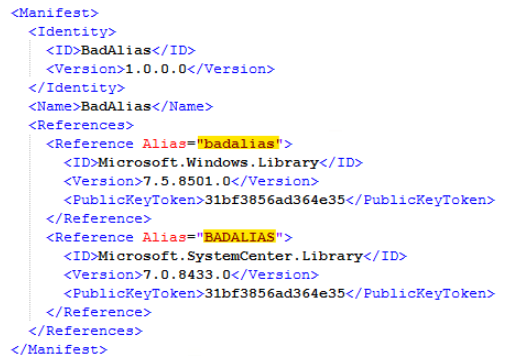
To detect MPs with this issue, you can use the following PowerShell or SQL query. After detection, you will need to export these MP’s and re-label one of the duplicate Aliases, and re-label it anywhere it was used in the body of the XML.
PowerShell:
############################################
#Identify MPs imported with duplicate Aliases
$mps = Get-SCOMManagementPack
foreach ($mp in $mps)
{
  $hashTable = @{}
  foreach ($ref in $mp.References)
  {
    try {$hashTable.Add($ref.Key, $ref.Value)}
    catch
    {
      $MPName = $mp.Name
      $MPDisplayName = $mp.DisplayName
      $MPVersion = $mp.Version
      "MP contains duplicate aliases: Name=($MPName) DiplayName=($MPDisplayName) Version=($MPVersion)"
    }
  }
}
############################################
SQL:
-- LIST ALL MPs that have a duplicate Alias reference
declare
       @mpFriendlyName nvarchar(255),
       @mpName nvarchar(255),
       @mpId uniqueidentifier,
       @mpXml as xml

create table #badMPTable (
       mpId uniqueidentifier,
       mpName nvarchar(255),
       mpFriendlyName nvarchar(255)
)

declare mp_cursor cursor local forward_only read_only for
       select
              MPFriendlyName,
              MPName,
              ManagementPackId,
              convert(xml, MPXML)
       from ManagementPack

open mp_cursor
fetch next from mp_cursor
into @mpFriendlyName, @mpName, @mpId, @mpXml

while @@FETCH_STATUS = 0 begin
       select
       n.value('@Alias','nvarchar(255)') as mpRef
       into #tempRefs
       from @mpXml.nodes('/ManagementPack/Manifest/References/Reference') as a(n)

       if exists(
              select count(*)
              from #tempRefs
              group by mpRef
              having count(*) > 1
       ) begin
              insert into #badMPTable (
                     mpId,
                     mpName,
                     mpFriendlyName
              ) values (
                     @mpId,
                     @mpName,
                     @mpFriendlyName
              )
       end

       drop table #tempRefs

       fetch next from mp_cursor
       into @mpFriendlyName, @mpName, @mpId, @mpXml
end

close mp_cursor
deallocate mp_cursor

select *
from #badMPTable

drop table #badMPTable
--End
2. AD integration is broken out of the box in SCOM 2025.
You will see events such as:
Log Name: Operations Manager
Source: Health Service Modules
Event ID: 11460
Description: There was an error while updating Management Group container.
Exception: System.DirectoryServices.ActiveDirectory.ActiveDirectoryObjectNotFoundException
Message: The specified domain does not exist or cannot be contacted.
This is caused by the fact that NT Authority\System is now exposed in the Operations Manager Administrators user role. It was always present in previous versions of SCOM, but hidden. Now that it is exposed, it will break AD integration.
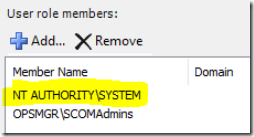
Remove this, and AD integration works fine.
3. SCOM 2025 Web console Performance and Diagram views might throw a 500 error
- Need to change security:
- On the web console server – find the folder: \Program Files\Microsoft System Center\Operations Manager\WebConsole\MonitoringView\TempImages
- Change the security on this folder for Authenticated Users – and add “Write” capability.
4. SCOM 2025 upgrade will fail if you have updated Linux/Unix MP’s in SCOM 2022.
- Please check this to see if you will be impacted: Upgrade from SCOM 2022 to SCOM 2025 fails due to Microsoft.Unix.Library – Kevin Holman’s Blog