

KB Article for the SCOM 2025 UR1 update
KB Article for the SCOM 2025 Post UR1 Hotfix
Download Update Rollup from the Catalog
Download the NEW Simplified Management Server Update EXE
Download Updated UNIX/Linux Management Packs
Recommended hotfix page
Key fixes:
- Console Content Blocked: Resolved an issue where Operations Manager Console content was blocked by Internet Explorer control.
- Authoring Monitors Failure: Fixed a problem causing monitor authoring to fail in the console.
- Reset State Task Issue: Addressed an issue where the Reset State task did not function for monitors linked to virtual Windows computer objects.
- Web Console Dashboard Columns: Fixed the issue preventing column resizing in the Active Alerts Dashboard.
- Topology Widget Icons: Resolved an issue where icons in Topology Widgets were not draggable.
- Contextual Widgets Functionality: Fixed an issue causing Contextual Widgets to malfunction.
- S2D Workflow Failure: Resolved a problem with S2D Workflows using the WMIEventDataSource, which failed with error 0x800706d3 (RPC_S_UNKNOWN_AUTHN_SERVICE) and caused a WMI memory leak.
- Web Console Image Blocking: Fixed an issue where images were blocked in the web console due to Content Security Policy (CSP) restrictions.
- Resolved all issues related to GB18030-2022 and its amendment.
New features added:
TLS v1.3 Support: Enhanced security and compliance with the latest encryption standards.- Microsoft SQL Server 2025 Support: Compatibility with the latest SQL Server version for improved performance and scalability.
Unix/Linux/Network monitoring fixes and changes:
- Added support on Operations Manager Linux Agent for Openssl3.* Distros Like Debian 13, RHEL 10, Rocky Linux 10, Alma Linux 10, and Oracle Linux 10.
Previous fixes:
- In addition to these issues, all the issues that are fixed in Operation Manager 2022 Update Rollup 3 and earlier hotfixes for Operations Manager 2025 are also included in this Update Rollup.
NOTE: I get this question every time we release an update rollup: ALL SCOM Update Rollups are CUMULATIVE. This means you do not need to apply them in order, you can always just apply the latest update. If you have deployed SCOM and never applied an update rollup – you can go straight to the latest one available.
NOTE: There are some significant issues in SCOM 2025 UR1 dealing with TLS 1.3, for which a Post UR1 hotfix has been released. You should ALWAYS plan to apply UR1, and then immediately apply the post-UR1 hotfix to resolve these known issues. The link for the Post UR1 hotfix is Update rollup 1 hotfix for System Center Operations Manager 2025 – Microsoft Support
Let’s get started
From reading the KB article – the order of operations is:
1. Install the update rollup package on the following server infrastructure:
- Management Servers
- Audit Collection Servers
- Web Console Servers
- Gateway Servers
- Operations Console Servers
- Reporting Server
2. Apply Agent Updates
3. Update Unix/Linux MP’s and Agents
Management Servers

There is a new process for updating management servers that differs from previous versions of SCOM. Download the single file management server EXE update, and this will ensure that your Management Server Role is updated, as well as any SQL updates, and Management Pack updates with a UI to show you success/fail and progress.
It doesn’t matter which management server I start with. I simply make sure I only patch one management server at a time to allow for agent failover without overloading any single management server.
I have multiple management servers My first two management servers hold 3 roles, and each must be patched: Management Server, Web Console, and Console.
The first thing I do when I download the updates from the catalog, is copy the cab files for my language to a single location, and then extract the contents.
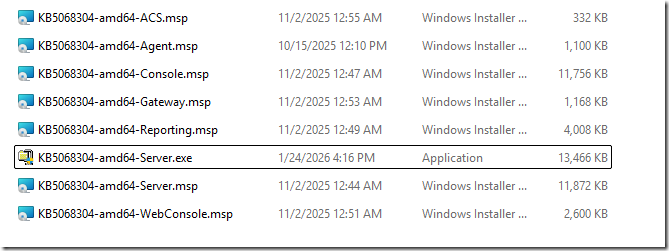
Notice the EXE file, and a MSP file exist for the Server update. The EXE is the new simplified update file, but we included the older MSP for customers who want to continue to use the old process, or use silent installs for patching. EITHER of these files will patch the server and attempt to run the SQL scripts and MP imports. The EXE simply provides a visual progress. That is the primary difference. I will ONLY demonstrate and recommend the EXE file for the Management Server role update.
Once I have the EXE and MSP files, I am ready to start applying the update to each server by role.
- ***Note: One of the changes in SCOM 2019 and later Update Rollups, is that you no longer need to have “Sysadmin” role level rights to SQL. The SCOM Update Rollup simply updates SCOM, and then uses your existing RunAs accounts to deploy the updated SQL script files to modify the SQL databases. You simply need to log into your SCOM management servers as a Local Administrator and SCOM Admin.
My first server is a Management Server, Web Console server, and has the SCOM console installed, so I copy those update files locally, and execute them per the KB, from an elevated command prompt.
I will start with KB5068304-amd64-Server.exe
This is a self-extracting executable, that kicks off a simple update tool. Accept the license terms, and click “Install”
This will update the management server role, update the databases with SQL scripts, and then import any Management Pack updates.
You SHOULD see something like the following when complete.

Be warned – that sometimes this EXE update forces an immediate reboot of the management server as soon as this update completes, and you do not get to see if all steps were successful.
If you have an issue – you can review the setup logs:
- Setup Log: C:\Users\<UserName>\Appdata\Local\SCOM\Logs
- SQL Logs: <SCOM install directory>\Server\SQL Script for Update Rollups\SqlExceptions_{version}.log
- MP Import Logs: <SCOM install directory>\Server\Management Packs for Update Rollups\ManualMPImport_{version}.log
Next up – since this management server also runs a SCOM Web Console, I will run the Web Console update: KB5068304-amd64-WebConsole.msp
Next – install the Console Update (make sure your console is closed): KB5068304-amd64-Console.msp
You can reboot the server at this time if you were prompted to in order to complete the update. If you were not prompted to, you do not need to.
 We must now apply the Post UR1 Hotfix from Update rollup 1 hotfix for System Center Operations Manager 2025 – Microsoft Support
Download the KB5080648-amd64-Server.msp file and execute it from an ELEVATED Command Prompt.
Additional Management Servers:
Apply the UR updates for Server, Web Console, and Console roles as needed for all additional management servers. You should only patch one management server at a time to allow for graceful failover of agents and to keep resource pools stable.
You can use the same EXE file and MSP files (where applicable) you used for the first management server. The setup program will detect if the SQL scripts are already completed, and if the MP’s are already imported, and skip those if they are not needed.
Be warned – that sometimes this EXE update forces an immediate reboot of the management server as soon as this update completes, and you do not get to see if all steps were successful.
 We must now apply the Post UR1 Hotfix from Update rollup 1 hotfix for System Center Operations Manager 2025 – Microsoft Support
Download the KB5080648-amd64-Server.msp file and execute it from an ELEVATED Command Prompt.
ACS Update: (Audit Collection Services)

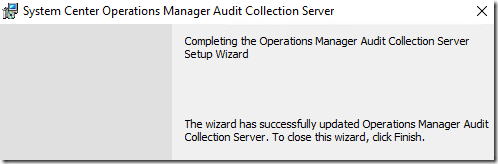
One of my management servers is also my ACS Audit Collection Server role. I will apply the update for that:
KB5068304-amd64-ACS.msp
Updating Gateways:

Open an elevated command prompt, and run the update: KB5068304-amd64-Gateway.msp
The update launches a UI and quickly finishes.
 We must now apply the Post UR1 Hotfix from Update rollup 1 hotfix for System Center Operations Manager 2025 – Microsoft Support
Download the KB5080648-amd64-Gateway.msp file and execute it from an ELEVATED Command Prompt.
Updating Reporting:

On your server that hosts the SCOM Reporting role, run the update: KB5068304-amd64-Reporting.msp
Update Agents:

 Verify that you have the correct path file in the \AgentManagement directory before updating agents.
Browse to your “\Program Files\Microsoft System Center\Operations Manager\Server\AgentManagement\amd64” directory and ensure it has the agent MSP update file:
- KB5068304-amd64-Agent.msp
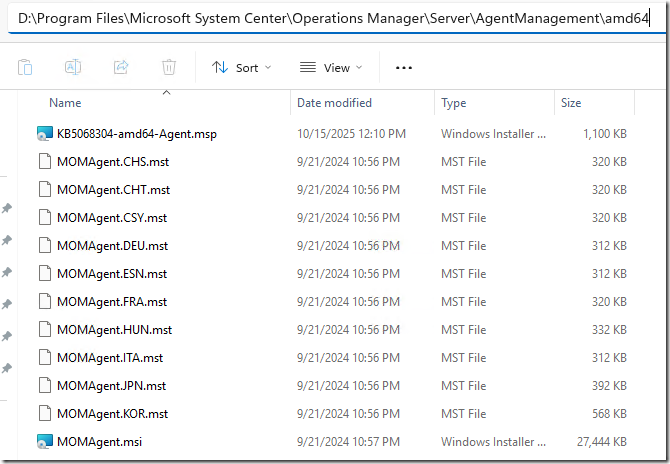
You may also delete any previous UR files, that are left behind from previous Update Rollups.
Agents should be placed into pending actions by this update for any agent that was not manually installed (remotely manageable = yes):
***NOTE: For this to work, you MUST run the server update from an elevated command prompt, and the user account running the update must be a Local Admin, and SCOM Admin. The Agents MUST have “Remotely Manageable” set to “Yes”.
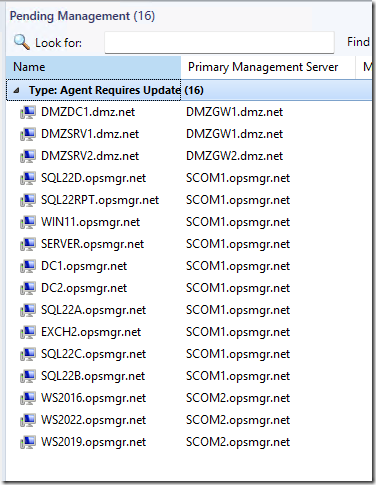
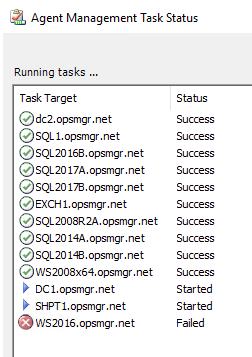
You can approve these – which will result in a success or failure message once complete:
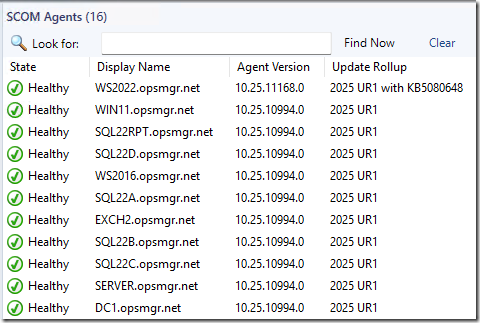
Now we will show the “REAL” agent number in the Administration –> Agent Managed view console:

And my SCOM Management MP, which will help show you REAL UR levels based on a better discovery. This has long been a pain point in SCOM:
https://kevinholman.com/2017/05/09/scom-management-mp-making-a-scom-admins-life-a-little-easier/
Update UNIX/Linux MPs and Agents:
You can get the current Unix/Linux MP updates HERE.
Download, extract, and import ONLY the updated Linux/UNIX MP’s that are relevant to the OS versions that you want to monitor. Here is the FULL list:
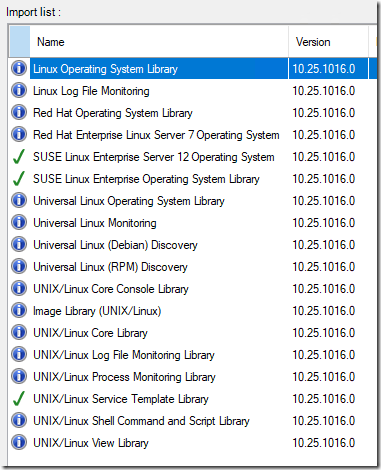
In my environment – I only monitor RedHat and Universal Linux distributions, so this is my pared down list of MP’s to update. Yours may vary, depending on what previous versions you are upgrading from:
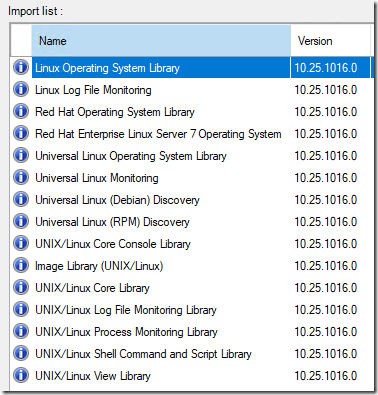
These can take a considerable amount of time to import, and consume a lot of CPU on the management servers and SQL server until complete.
Once it has completed, and before you attempt to update your Linux Agents – verify the updated files are dropped at \Program Files\Microsoft System Center\Operations Manager\Server\AgentManagement\UnixAgents\DownloadedKits. If they are not present or not updated after import, sometimes you must restart the Microsoft Monitoring Agent service on the management servers after an MP Import to get them to show up.
After restarting my Microsoft Monitoring Agent service on my management server, I see the new files dropped with new timestamps:
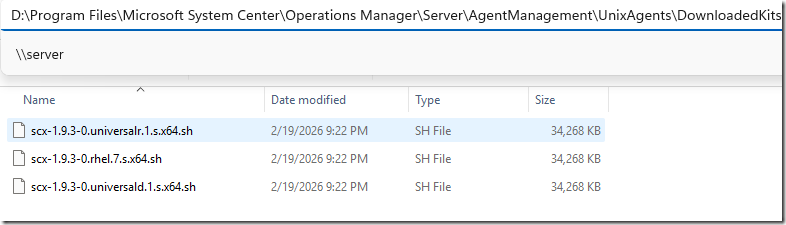
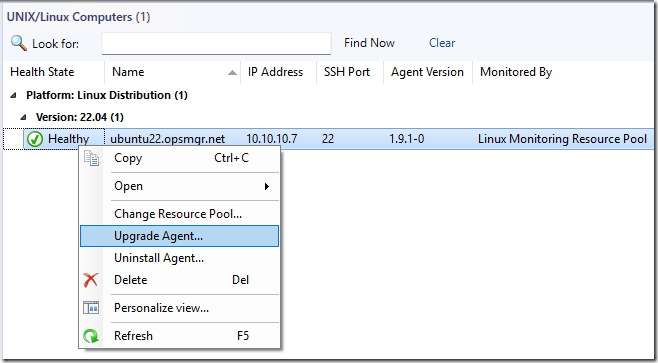
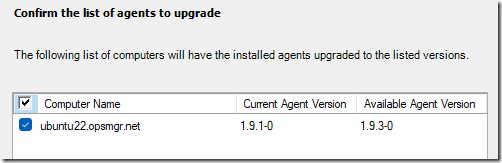
Now you can deploy the Linux agent updates:

Update the remaining deployed consoles

This is an important step. I have consoles deployed around my infrastructure – on my Orchestrator server, SCVMM server, on my personal workstation, on all the other SCOM admins on my team, on a Terminal Server we use as a tools machine, etc. These should all get the matching update version.
Verifying the update
There are new views in the SCOM console to help with this and make this process MUCH easier. You do need to wait long enough for the discoveries to run in order for these to update the views.

Review:
Now at this point, we would check the OpsMgr event logs on our management servers, review the Management Group Health dashboard, check for any new or strange alerts coming in, and ensure that there are no issues after the update.
Known Issues:

1. SCOM 2025 UR1 has a bug where TLS 1.3 does not work correctly in some environments, and will cause the MS Resource pools to fail, Gateway failures, and some agents to fail to connect.
You need to apply the SCOM 2025 POST UR1 Hotfix KB5080648 as soon as possible.
2. SCOM 2025 KB5068304-amd64-Server.msp does not add the agent update to the \AgentManagement directory.
You should use the KB5068304-amd64-Server.EXE file to patch SCOM management servers, or manually copy the agent update file into the directory. This will have to be manually copied for gateway servers since the product group omitted this step for gateway servers.
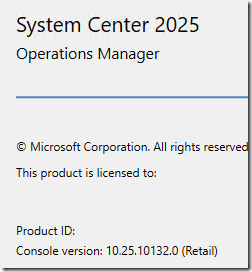
3. The SCOM console does not reflect the UR1 update.
Help > About in the SCOM console shows the RTM version, and does not reflect the patched UR1 version. This is a bug and should be corrected in UR2.
Done!

Why is TLS1.3 struckthrough above? Does that mean it is not supported.
That is correct. SCOM 2025 UR1 was supposed to add support for TLS 1.3, however, there was a significant bug found so the hotfix disabled SCOM from using TLS 1.3. TLS 1.3 support should arrive with SCOM 2025 UR2.
Hi Kevin,
this 1603 error code related to UpdateSQLScripts during Hotfix installation, see posts below, appears to be widespread and reproducible, even when the hotfix is explicitly run as administrator and the user executing it has administrative privileges in all SCOM systems and SQL Server instances.
Do you have any tips or suggestions on how to reliably install the hotfix without errors?
Here is the deal – that hotfix does not contain any SQL scripts. Only the UR1 package does. The post UR1 hotfix KB5080648-amd64-Server contains only two DLL files. So if this hotfix is throwing an error for updated SQL scripts not applying, that is because it doesn’t contain any. That’s a problem with the MSP wrapper, that the PG messed up obviously. That said – when you get this error, the two DLL files updated are all that matters. You can use my SCOM Management MP and it will detect if they are updated with the post UR1 hotfix version or not.
There is no need to run the SQL scripts manually.
How to fresh install SCOM 2025 with SQL 2025 Standard CU3?
Kevin, I have a very weird issue in my SCOM 2025 environment.
my web portal works OK except… it fails to show state views from custom management packs (built with your fragment library which BTW works great !)
state views return a 500 internal server error.
in the same management pack, the alert view works OK in the web portal.
The official management packs have no issues – they show their data fine in the portal
(I am using https – and have a fixed DNS entry SCOM-Portal.domain.com and that works fine)
my application pools use ApplicationPoolIdentity – but I also tried to update them to the SDK account, but that made no difference…
I have TLS1.2 and 1.3 enabled, and all other ones and SSL disabled.
in visual studio (2022) I have imported the VSAE for 2022 (since it is not available for 2025 yet), and I created my own reference folder for SCOM 2025, and when creating a new MP, I delete the 2022 Microsoft.SystemCenter.Library and replace it with the SCOM 2025 equivalent with version ID 10.25.10132.0 and delete the 2022 Microsoft.SystemCenter.Visualization.Library (and it is not used in my management packs anyway)
this error occurs on all custom made management pack state views. (unsealed – not sure if that has to do something with it)
I have a QA environment – the exact same management pack uploaded to that environment – but it does not have UR1/hotfix installed yet, and there the state view shows data without errors
so somehow it seems a “permission” issue ?!?
but I am SA in SQL DB/DW, full admin on the SQL server, management servers and in SCOM.
I am a bit lost.
in my browser, under developer tools I see this error:
main.js:1 GET https://scom-console.domain.com/MonitoringView/default.aspx?ViewType=StateView&ViewID=a6b232ed-a05a-d844-4c59-48a9faa0033d 500 (Internal Server Error
I’m not sure if this helps you, but I had a similar issue where I was getting an HTTP 500 error for Performance Graphs. Because we use Network Authentication Mode, my issue was resolved by changing Anonymous Authentication from Specific User: IUSR to Application Pool Identity on the MonitoringView and OperationsManager Web Applications (not sure why this wasn’t done as part of the install, why this doesn’t appear to be documented in Microsoft Docs, or why SCOM didn’t pick it up as a configuration issue as part of monitoring the server).
My issue differs from yours in that this was impacting Microsoft provided management packs in addition to custom management packs, and that this was impacting primarily performance graphs not state views, so I don’t know how helpful this is to your situation
One more update. As a test I removed a custom management pack, and changed it to be sealed and then deployed it again. initially the (empty) page showed without errors, but as soon as the first discovered data appeared, the Error 500 returned….
in the full console the state data shows without issues….
I removed the webconsole (using the official remove a feature from the SCOM installer)
then reinstalled it again. immediately the webconsole was working again.
this time I created a snapshot and then applied the UR1 update to the webconsole and instantly I got the error 500 back.
I am convinced the error is related to the class Windows!Microsoft.Windows.LocalApplication.
not only fails the state view on my custom management packs, but I also noticed that the official Miscrosoft SQL Server\Integration Services\Integration Services view also was throwing an error 500 too.
so it’s not just unsealed / custom management packs, but also impacting official Management packs.
I reverted back to my snapshot, and now the webconsole is working properly again !!!
Get the following error when trying to apply SCOM 2025 UR1 hotfix on SCOM management server:
Calling custom action CAManaged!Microsoft.MOMv3.Setup.MOMv3ManagedCAs.UpdateSQLScripts
UpdateSQLScripts|CustomActionData = 10.25.10132.0|C:\Program Files\Microsoft System Center\Operations Manager\Server\|Srv22-SCOM1|OperationsManager|Srv22-SCOM1|OperationsManagerDW
Getting management group…
Connected to management group in second try.
UpdateSQLScripts|DB updation failed|Database updater management pack is not updated
CustomAction _UpdateSql.1451A536_2C9B_42F2_A37A_C9C6460E7EEA returned actual error code 1603 (note this may not be 100% accurate if translation happened inside sandbox)
MSI (s) (14:98) [08:53:19:408]: NOTE: custom action _UpdateSql.1451A536_2C9B_42F2_A37A_C9C6460E7EEA unexpectedly closed the hInstall handle (type MSIHANDLE) provided to it. The custom action should be fixed to not close that handle.
Action ended 8:53:19: _UpdateSql.1451A536_2C9B_42F2_A37A_C9C6460E7EEA. Return value 3.
Action ended 8:53:19: INSTALL. Return value 3.
Installation of SCOM 2025 UR1 was successful. Hotfix is run from elevated command prompt. Hotfix file is unblocked. Get this error on three different SCOM 2025 UR1 environments.
Any hints?
I found out I also had a 1603 error code related to UpdateSQLScripts. you don’t get any “notification” about that failure while you install the hotfix ?!?
I used the “official” uninstall command to remove the hotfix as described on the page where you can download the hotfix. and then installed again – making sure I ran it from an elevated prompt, and configured it to create a logfile, and strangely enough, it did install OK this time….
we don’t use UAC on this server, and I am part of the administrators group, so I am not sure if this has something to do with opening a command prompt as administrator or something else…
Exactly, only the Windows Application Log logs the error Event ID 1023 with the message “Product: System Center Operations Manager Server – Update ‘System Center 2025 Operations Manager Update Rollup 1 Hotfix’ could not be installed. Error code 1603. Windows Installer can create logs to help troubleshoot issues with installing software packages.”
I have since successfully installed the hotfix in two environments on SCOM Management Servers. In my experience, there is unfortunately no universally applicable procedure that guarantees a successful installation on the first attempt. Even when running the hotfix from an administrative command prompt, errors can still occur. Manually applying the SQL scripts from the SCOM program directory may help.
Given that this hotfix installation error doesn’t appear to be an isolated incident, I have a feeling that Microsoft didn’t test the hotfix thoroughly enough.
Hi Kevin,
and anyone reading this blog,
I’ve experienced a Failed Upgrade from SCOM 2022 UR3 to SCOM 2025 RTM. Fortunately, this occured in our LAB environment.
Root cause: an incompatibility with the Microsoft.Unix.Library MP.
The issue occurs if you have installed the latest Linux MP version from SCOM2022 UR3 which is at version 10.22.1330. (released january 2026) The most recent version for SCOM 2025 dates back to 2025.
Version 10.22.1330 introduces a new Datasource and ProbeAction modules that are not present in the SCOM 2025 version of the Microsoft.Unix.Library MP.
Microsoft.Unix.TimedShellCommand.DataSource
Microsoft.Unix.ShellCommand.ProbeAction
Extract from errors during the installation:
Error 1:
Found error in 2|Microsoft.Unix.Library|10.22.1330.0|Microsoft.Unix.Library|| with message:
Version 10.25.1005.0 of the management pack is not upgrade compatible with older version 10.22.1330.0. Compatibility check failed with 6 errors:
——————————————————-
Error 2:
Found error in 1|Microsoft.Unix.Library/31bf3856ad364e35|1.0.0.0|Microsoft.Unix.TimedShellCommand.DataSource|| with message:
DataSourceModuleType: Microsoft.Unix.TimedShellCommand.DataSource exists in current version 10.22.1330.0 of the management pack but does not exist in new version .
——————————————————-
Error 3:
Found error in 1|Microsoft.Unix.Library/31bf3856ad364e35|1.0.0.0|Microsoft.Unix.ShellCommand.ProbeAction|| with message:
ProbeActionModuleType: Microsoft.Unix.ShellCommand.ProbeAction exists in current version 10.22.1330.0 of the management pack but does not exist in new version .
——————————————————-
Error 4:
Found error in 1|Microsoft.Unix.Library/31bf3856ad364e35|1.0.0.0|Microsoft.Unix.ShellCommand.MatchesRegExp.TwoState.MonitorType|| with message:
UnitMonitorType: Microsoft.Unix.ShellCommand.MatchesRegExp.TwoState.MonitorType exists in current version 10.22.1330.0 of the management pack but does not exist in new version null.
——————————————————-
Error 5:
Found error in 1|Microsoft.Unix.Library/31bf3856ad364e35|1.0.0.0|Microsoft.Unix.SCXCert.WriteAction|| with message:
Generated XML sample:
Certificate1
ValidityYears1
did not pass schema validation against the new Configuration schema.
: Schema validation failed.
The element ‘Configuration’ has invalid child element ‘ValidityYears’.
——————————————————-
Error 6:
Found error in 1|Microsoft.Unix.Library/31bf3856ad364e35|1.0.0.0|Microsoft.Unix.SSHBased.Cert.Signing.WriteAction|| with message:
Generated XML sample:
Host1
Port1
UserName1
Password1
TimeoutSeconds1
ValidityYears1
did not pass schema validation against the new Configuration schema.
: Schema validation failed.
The element ‘Configuration’ has invalid child element ‘ValidityYears’.
——————————————————-
Error 7:
Found error in 1|Microsoft.Unix.Library/31bf3856ad364e35|1.0.0.0|Microsoft.Unix.SSHBased.Cert.Signing.WriteAction|| with message:
Publicly accessible OverrideableParamter (ValidityYears) has been removed in the newer version of this management pack.
——————————————————-
[10:01:45]: Error: :ImportManagementPack: Unknown Error. System.ArgumentException : The requested management pack is not valid. See inner exception for details.
Parameter name: managementPack
[10:01:45]: Info: :ProcessInstalls: Rollback is set and we are not doing an uninstall so we will stop processing installs
[10:01:45]: Always: :****************************************************************
[10:01:45]: Always: :****Starting*RollBack*******************************************
[10:01:45]: Always: :****************************************************************
The upgrade ultimately fails and triggers a rollback, which also
clears the installation folder.
Fortunately, I had a full backup of the RMSe and the Ops Databases.
I recommend verifying the installed Linux MP version before attempting to upgrade from SCOM2022 to 2025
Any older version than 10.22.1330 appears to work (because the modules were introduced in 10.22.1330).
Workaround: prior to Upgarding: Remove the Linux MPs + all dependent MP’s (this can get though) – reinstall an older Linux MP version.
As an alternative you could wait for a newer/updated version of the SCOM 2025 Linux MP’s
Cheers
If one installed UR1 for scom 2025 without prior installing the hotfix mentioned in this post
https://support.microsoft.com/en-us/topic/update-rollup-1-hotfix-for-system-center-operations-manager-2025-249365e9-af16-4cd1-9b14-47e9a9a44413
Can it be installed afterwards ?
It can only be installed after UR1. It is literally a post UR1 hotfix.
I saw that after my post 🙁 a little bit awkward from my point of view but thanks for you answer much respect. I was just in my own bubble regarding the Data Warehouse Synchronization service failure.